Juniper SRX: Firewall Security Zones
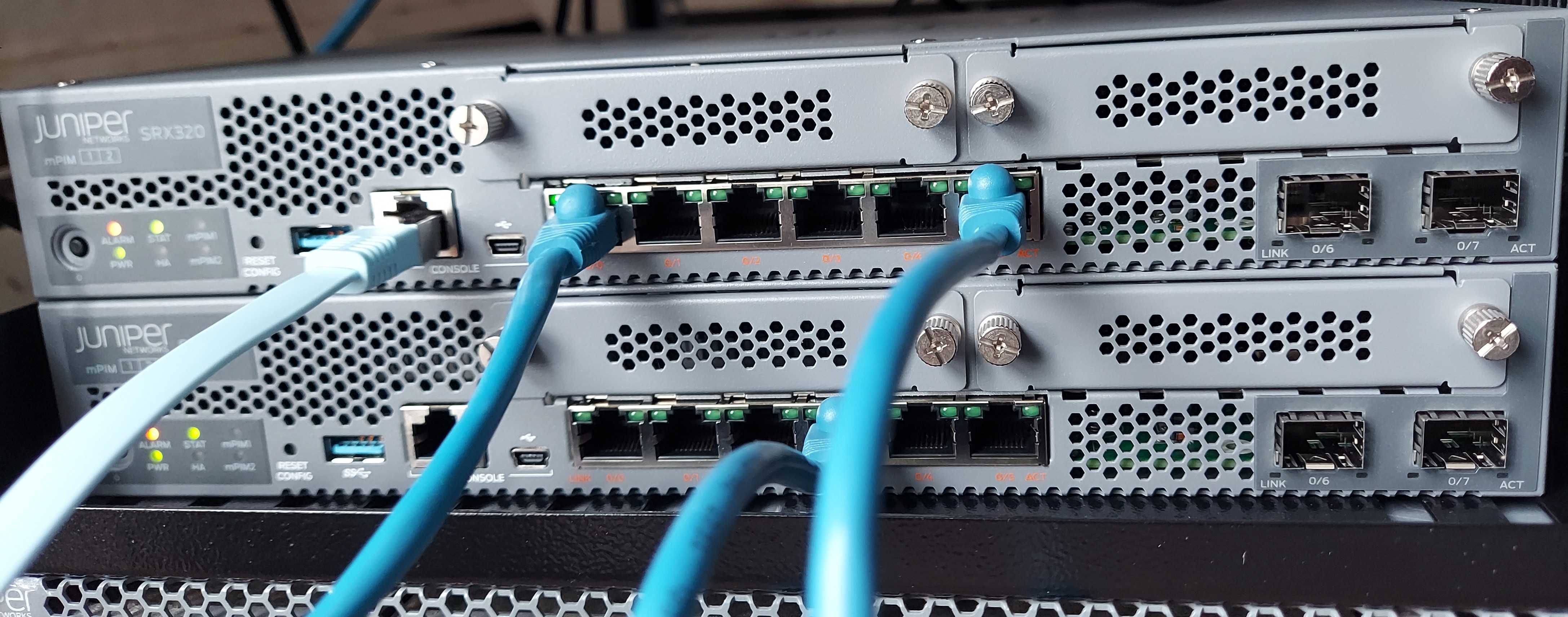
Security zones are important elements in Juniper SRX firewall devices.
What is a firewall security zone?
A security zone in Juniper SRX device is a logical unit used to divide a network into segments that may have different security requirements. Interfaces are then associated with security zones. Each interface can be associated to only one security zone, and each security zone can have multiple interfaces with the same security requirements for inbound and outbound traffic.
Juniper SRX Series Firewall secures a network by inspecting, and then allowing or denying, all connection attempts that require passage from one security zone to another.
Security zones have the Trust zone which is available only in the factory configuration and is used for initial connection to the device. After you commit a configuration, the trust zone can be overridden
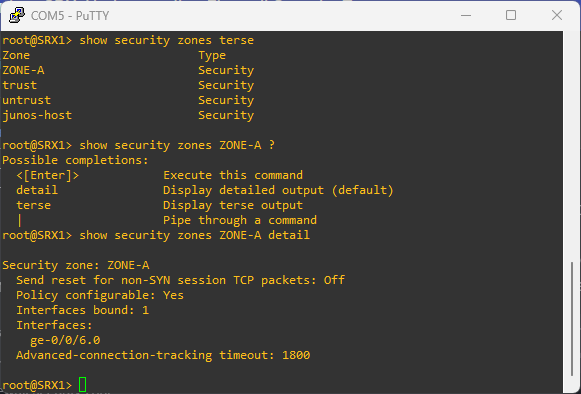
# to see the zones configured on the device
show security zones
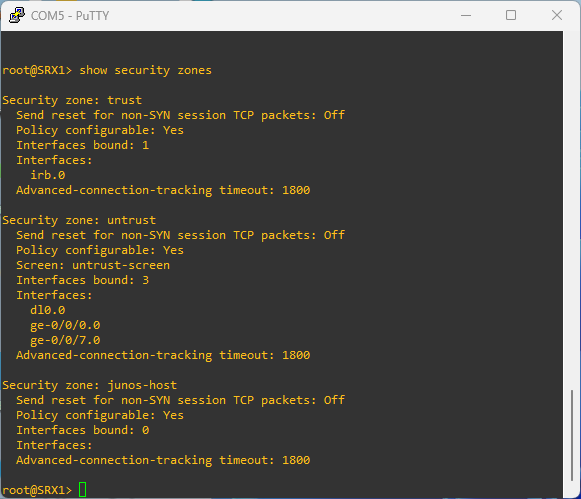
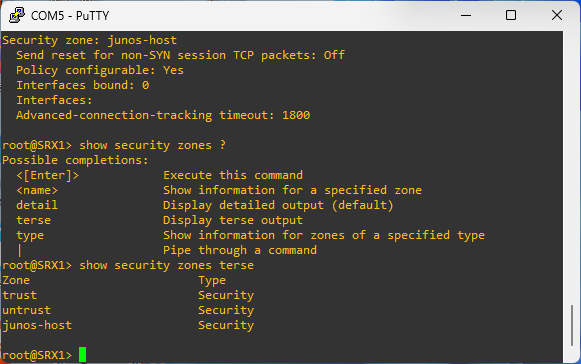
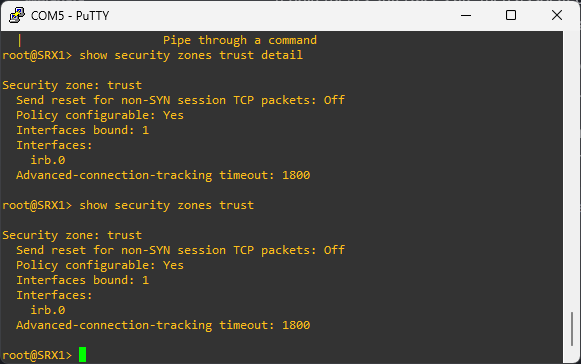
Security zone components
Security policies
Security policies are rules that regulates traffic going from one zone to another. They are processed in the order they are defined.
Policies allow us to deny, permit, reject, encrypt and decrypt, authenticate, prioritize, schedule, filter, and monitor the traffic attempting to cross from one security zone to another. We decide which users and what data can enter and exit, and when and where they can go.
Screens
Screens are predefined configurations that are used to block common network level attacks. Screens configurations are applied to ingress packets only. They are check at the beginning of the packet flow so that packets can be dropped as early as possible.
Screens categories
Statistics based screens
This is ued to determine normal network behavior and form a baseline level. Any activity outside the baseline is flagged as abnormal
Signature based screens
Use patterns or signagures to identify malicious behaviors.
Screen configuration
# create screen
edit security screen ids-option ZONE-A-SCREEN

# 50 icmp packet per second for a destination
set icmp flood threshold 50

# attach screen to zone
set security zones security-zone ZONE-A screen ZONE-A-SCREEN
To see the stats of the screen:
show security screen statistics zone ZONE-A
Address books
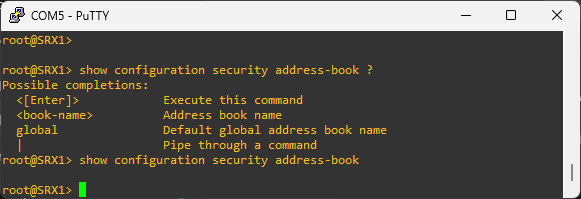
Address books are made of IP addresses and address sets used to make it easier to apply policies to them. By default, the SRX device configuration has an address book called global. The global address book is not attached to any security zone. But any additional address book created bust be attached to a security zone.
Address object defined in one zone cannot be used in another zone. But address objects defined in the global address book can be used in any zone.
# create a new address book
edit security address-book BOOK-A

set address DNS-SERVER 172.16.20.10/32
set address STAGING-SERVERS 192.168.10.0/26
Address objects
IP prefix
- LAN1 192.168.50.1/24
- DNS Server 192.168.40.1/32
edit security address-book ZONE-A

set address DNS-SERVER 9.9.9.9/32
IP range
- Servers 172.16.1.1-172.16.1.50
edit security address-book ZONE-A

set address SERVERs range-address 192.168.40.20 to 192.168.40.80

set attach zone ZONE-A
DNS address
- Syslog server log.mywebsite.com
edit security address-book ZONE-A

set address WEBAPP dns-name myapp.mysite.com

set attach zone ZONE-A
Wildcard address
- 172.16.20.50/255.255.0.255 - matches 172.16.*.50
edit security address-book ZONE-A

set address LAB-SERVERS wildcard-address 10.10.10.10/255.255.0.255

set attach zone ZONE-A
Interfaces
That is the list of interfaces in the zone. An interface can belong to only one security zone. By default, interfaces are in the null zone. The interfaces will not pass traffic until they have been assigned to a zone.
TCP RST
This feature is used to instruct the device to drop any packet that does not belong to an existing session and does not have the SYNchronize flag set.
How to create security zones in Juniper SRX device?
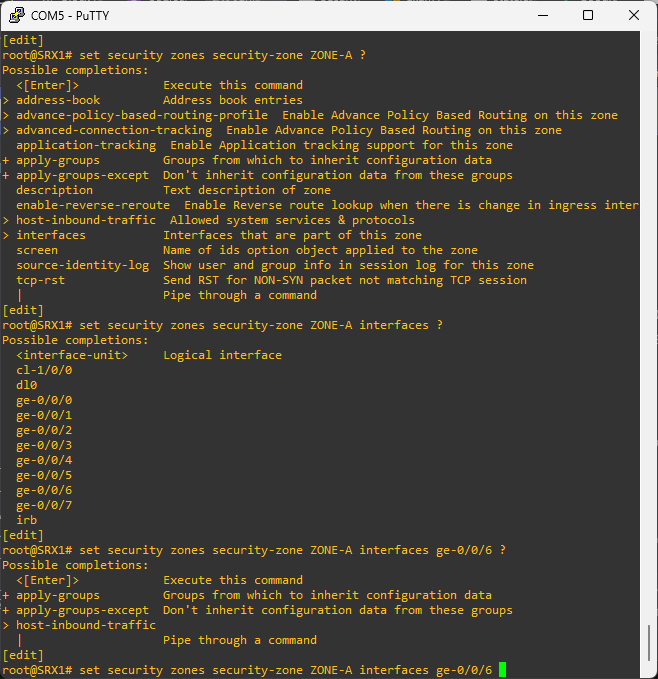
# create a new security zone and attach an interface
set security zones security-zone ZONE-A interfaces ge-0/0/1.0
Make sure the port is a routed port
# remove ethernet switching
delete interfaces ge-0/0/6 unit 0 family ethernet-switching
What is a functional zone in Juniper SRX?
A functional zone is used to host the management interfaces. The MGT zone is the only zone currently supported functional zone. Interfaces in the MGT zone allows an out-of-band management.
# create a functional zone and attach and interface
set security zones functional-zone management interfaces ge-0/0/2.0
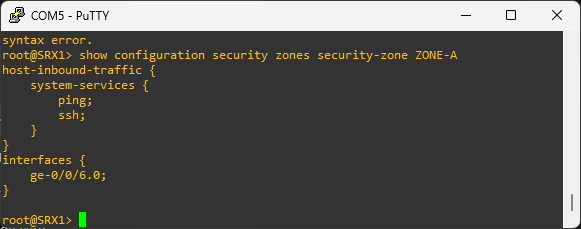
Host inbound traffic
Host inbound traffic is the traffic that is terminating at the SRX device. It is the traffic destined to the SRX device itself. That is different from transit traffic which enters from one interface and exits from another interface.
# to view host inbound traffic configuration
show security zones security-zones ZONE-A
# enable ssh, ping, and http web management in host inbound traffic
set security zones security-zones ZONE-A host-inbound-traffic system-services ssh
set security zones security-zones ZONE-A host-inbound-traffic system-services ping
set security zones security-zones ZONE-A host-inbound-traffic system-services http
The host inbound traffic can be configured in the zone level or in the interface attached to the zone. When the host inbound traffic is configured at the interface level, that configuration takes precedence over the configuration at the zone level.
# enable ssh, ping, and http web management in host inbound traffic via the interfaces
set security zones security-zones ZONE-A interfaces ge-0/0/1.0 host-inbound-traffic system-services ssh
set security zones security-zones ZONE-A interfaces ge-0/0/1.0 host-inbound-traffic system-services ping
set security zones security-zones ZONE-A interfaces ge-0/0/1.0 host-inbound-traffic system-services http
There a two host inbound traffic that we can configure:
-
system-services
-
protocols
Juniper application objects
The Junos default configuration group is hidden.
# to see the default configuration group
show configuration groups junos-defaults

# to see the default applications
show configuration groups junos-defaults applications
We can also create custom applications
# go to applications configuration
edit applications

# add a custom application
set application CUSTOM-APP application-protocol http
set application CUSTOM-APP application-port 8080

# add another custom application
set application CUSTOM-APP-2 application-protocol http
set application CUSTOM-APP-2 application-port 8443

# add an application set and previous applications
set application-set WEB-APPS application CUSTOM-APP
set application-set WEB-APPS application CUSTOM-APP-2
To specify multiple criteria for an application, for example multiple destination ports, we use a term.
# adding terms to a custom application
set application CUSTOM-APP term 1 destination-port 8080
set application CUSTOM-APP term 2 destination-port 8081