Skip to content

Security

Juniper SRX: Firewall Filters
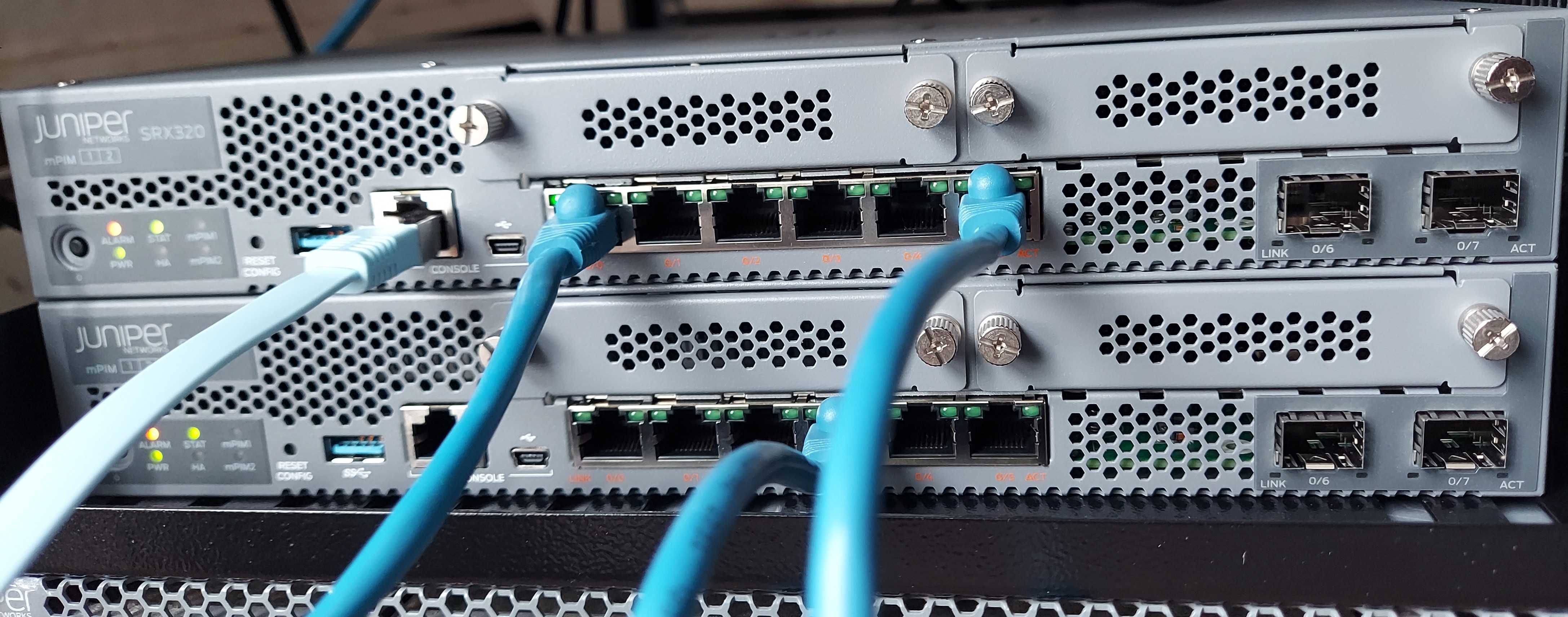
juniper-srx-320

This post is going to be focussed on Juniper SRX firewall filters. They are important to understand and configure because they protect your firewall from malicious traffic passing through or destined to the firewall.

What is a Firewall Filter?

A firewall filter in Juniper SRX is a security feature that defines a policy that evaluates the context of connections and permits or denies traffic based on the context (source IP address, destination IP address, port numbers, TCP sequence information, and TCP connection flags), updating this information dynamically.

Firewall filters are also known as access control lists by other vendors like Cisco. Other names also include authorization profile and packet filter.

How does Juniper SRX Firewall Filter Work?

The firewall filter inspects each and every packet coming in and going out of the SRX device interfaces. It is stateless and does not keep track of the state of the connections. It can be configured to accept or discard a packet before it enters or exits a port or interface. That is how we control the type and quantity of traffic that enters the device or exits the device.

If a packet is inspected and deemed to be acceptable, a class-of-service and traffic can be applied. If a packet arrives on an interface for which no firewall filter is applied for the incoming traffic on that interface, the packet is accepted by default. By default, a packet that does not match a firewall filter is discarded.

Firewall filters can be applied to all interfaces, including the loopback interface to filter traffic entering or exiting the device.

An IPv6 filter cannot be applied to an IPv4 interface that is because the protocol family of the firewall filter and interface must match.

Firewall Filter Components

Terms

A term is a named structure in which match conditions and actions are defined. Each term has a unique name. A firewall filter contains one or more terms, and each term consists of match conditions and actions. Let's note that a firewall filter with a large number of terms can adversely affect both the configuration commit time and the performance of the Routing Engine. The order of terms is important and impact the results. A firewall filter include a default term that discards all traffic that other terms did not explicitly permit.

The implicit term looks like:

term implicit-discard-all {
  then discard;
}
Match Conditions

A match condition or packet filtering criteria defines the values or fields that the packet must contain to be considered a match. If no match condition is specified, all packets are a match. So if we want an action to be taken for all packets, we can just omit the match condition. We use the from keyword to specify the match statement. If a packet contains multiple match conditions, the packet must match all conditions to be considered as a match for the term.

If a single match condition is configured with multiple values, such as a range of values, a packet must match only one of the values to be considered a match for the firewall filter term.

The match condition that is selected for the term depends on the protocol family the we select for the firewall filter.

Example of match conditions:

  • Source IP
  • Destination IP
  • TCP and UDP ports
  • TCP flags
  • IP options
  • Incoming interface
  • Outgoing interface
  • ICMP packet type
  • etc...
Actions

If all match conditions specified in the term are true, the action is taken. If the match condition of a term is omitted, the action specified is also taken.

It is a good practice to explicitly configure one or more actions per firewall filter term. Any packet that matches all the conditions of the term is automatically accepted unless the term specifies other or additional actions.

There are three (3) types of actions:

Terminating actions
  • Stops the evaluation for the filter for a specified packet

  • The specified action is performed, no additional term is evaluated

  • Terminating actions include accept, discard, and reject.

    The accept action causes the system to accept the packet. The discard action causes the system to silently drop the packet without sending and ICMP message back to the source address. The reject action causes the system to discard the packet and send an ICMP message back to the source address.

Nonterminating actions

Nonterminating actions are used to perform other actions on a packet that do not halt the evaluation of the filter. Those actions include incrementing a counter (count), logging information about the packet header (log), sampling the packet data, sending information to a remote host using the system log functionality (syslog), or rate limiting traffic (policer).

If a term contains a nonterminating action without an explicit terminating action, such as accept, discard, or reject, the system will accept the matching packet by default. If we don't want the firewall filter action to terminate, we can use the next term action after the nonterminating action.

example 1: term 2 never get evaluated because term 1 action is nonterminating. So, the default accept action is taken right after log.

[edit firewall filter demo]
term 1 {
    from {
        source-address {
           192.168.10.0/24;
        }
    }
    then {
        log;
    }
}
term 2 {
    then {
        discard;
    }
}

example 2: The have term 2 evaluated, we explicitly said it in term 1 using next term

[edit firewall filter test]
term 1 {
    from {
        source-address {
            192.168.11.0/24;
        }
    }
    then {
        log;
        next term;
    }
}
term 2 {
    then {
        reject;
    }
}
Flow control actions

A flow control action enables a device to perform configured actions on the packet and then evaluate the following term in the filter, rather than terminating the filter.

A standard firewall filter can have a maximum of 1024 next term actions. A commit error will occur if we exceed this number.

Firewall filter configuration

interfaces ge-0/0/1 {
  unit 0 {
    family inet {
      filter {
        input: inbound-filter-demo;
        output: outbound-filter-demo;
      }
    }
  }
}

input is used to filter traffic entering the interface and output is used to filter traffic exiting the interface.

Example of firewall filter configurations

# to enter firewall filter configuration
edit firewall filter
Block all bad ICMP messages
# create the filter
edit firewall filter BLOCK-BAD-ICMP

# create the term with the matching condition
set term ALLOW-TRUSTED-ICMP from protocol icmp 

# allow icmp from selected ips
set term ALLOW-TRUSTED-ICMP from source-address 192.168.10.10/32 
set term ALLOW-TRUSTED-ICMP from source-address 172.16.24.24/32 

# accept ICMP from trusted sources
set term ALLOW-TRUSTED-ICMP then accept

# block untrusted ICMP
set term BLOCK-UNTRUSTED-ICMP from protocol icmp 
set term BLOCK-UNTRUSTED-ICMP then discard

# allow all other traffic
set term ALLOW-OTHER-TRAFFIC then accept
# apply filter to interface
edit interfaces ge-0/0/1 unit 0 family inet

filter input BLOCK-BAD-ICMP

commit

See the configured filter

show firewall filter BLOCK-BAD-ICMP
Block all telnet
edit firewall filter BLOCK-ALL-TELNET

set term BLOCK-TELNET from protocol tcp
set term BLOCK-TELNET from destination-port telnet
set term BLOCK-TELNET then discard

set term ALLOW-OTHER-TRAFFIC then accept

then apply it to the loopback interface then commit the configuration

Learn more about firewall filters

Juniper SRX: Initial Lab Setup

juniper-srx-320

The Juniper SRX device is Juniper security appliance with security, routing, and networking features. The security feature includes NGF, IPS, UTM, and more. SRX stands for security, routing, and networking.

I started the setup of my 2 Juniper SRX 320 device today and it did not start the way I thought it would. Let me tell you what happen.

What I got in the boxes

Here is what I got in the box:

  • the SRX320 firewall device
  • two console cables (DB9 to RJ-45 and usb to mini-usb)
  • and a quite big PSU

It box contains basically anything you would need to get up and running.

Configuring the Juniper SRX320 Device

I am going to configure the device for my homelab and this is the initial configuration. So there will not be anything much in it. Just the basic to start with then change the configuration based on the lab I am working on. I will be posting a series of the labs I am doing in my blog here.

Junos version

See what version of Junos came with the device:

show version
show system information

junos-version

Factory configuration

To see the factory configuration, run:

show configuration

We can specify the topic after this command to see the configuration of the selected topic. For example show configuration security to see the security configuration of the SRX device.

We can even select a sub topic to see even filtered configuration. For example show configuration security policies to see security policies related configuration.

This is going to help us later to filter the configuration to see only the configuration we want to see.

Initial cleanup

disable-auto-img-upgrade

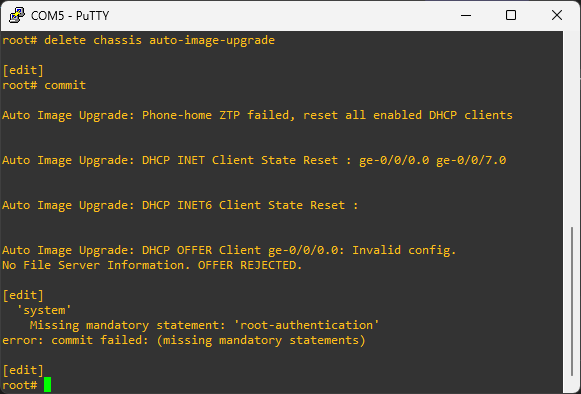
After power on the device, I started receiving the logs you can see on the screen. Clearing it with the command delete chassis auto-image-upgrade did not work. It required the root password to be setup first. After the root setting up the root password, the problem disappeared.

Root user password

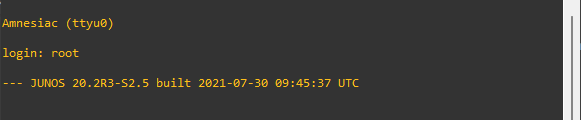
Juniper device comes with the root user created without a password. So, the first business of the day is to setup the root user password. Here is how we do it in the CLI.

junos-login

set system root-authentication plain-text-password

Now the root user is setup. See the configuration with:

show configuration system root-authentication

Hostname, date, and timezone

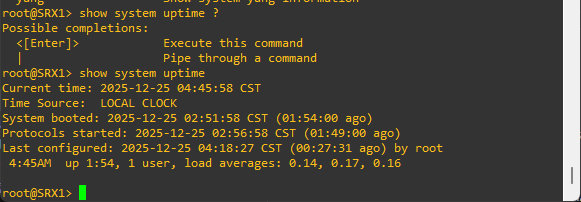
For the initial setup, the device time is not going to be synchronized with an NTP server. That may be part of a future lab. The date module takes YYYYMMDDHHMM time format. The date and time is setup in the operational mode and not in the configuration mode.

set date 202512241105

To view the time and date, run:

show system uptime

sys-uptime

Since we have two SRX device distinct hostname would be helpful.

[edit]
set system host-name SRX1

set system time-zone America/Chicago

To view the configured timezone:

show configuration system timezone

User accounts and permissions

Junos devices came with the root user account. I am going to need a non root user for my labs.

To create a new user, run:

[edit]

set system login user sam full-name "Mamadou Sandwidi"

Let's add the new user to a login class. For now I am going to use a predefined login class. We will make our own later during lab time.

set system login user sam class super-user

then add the password for the new user with:

set system login user sam authentication plain-text-password

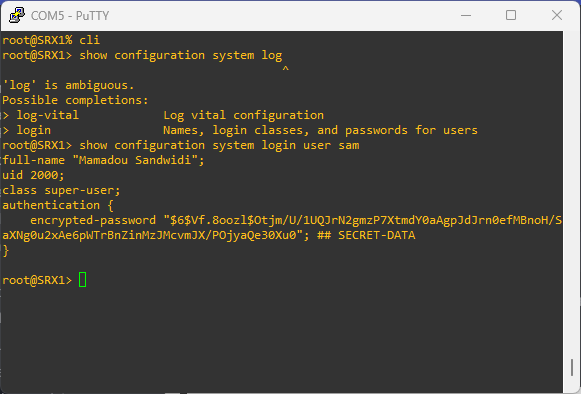
View the newly configured user with:

[edit]

show system login user sam 

user-account

Interfaces and VLANs

Let see the available interfaces.

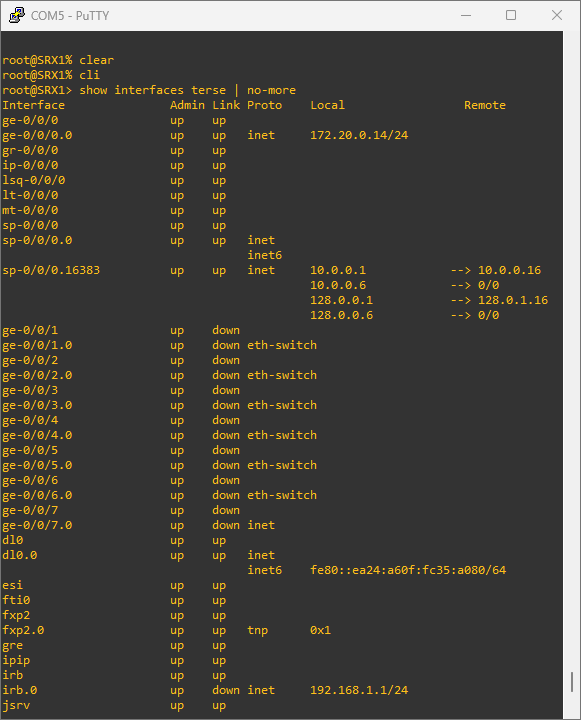
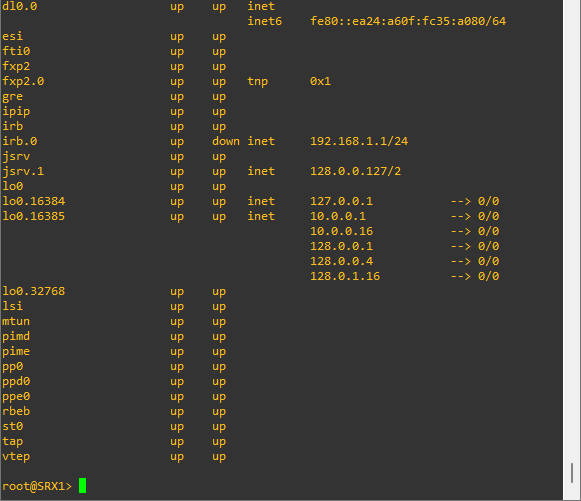
show interfaces terse | no-more

interfaces

interfaces

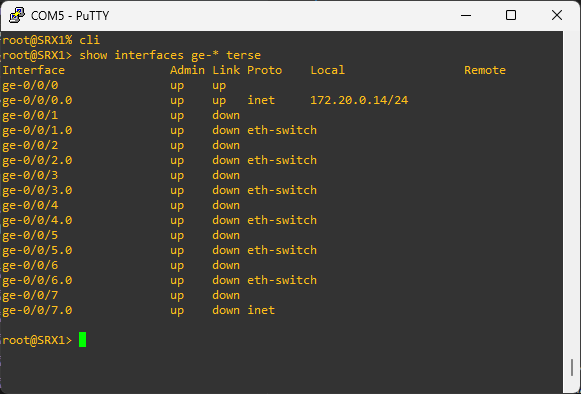
That is a lot. Let only see the gigabit interfaces since they are the one I will be working the most with.

show interfaces ge-* terse

ge-interfaces

Clear SRX device data

request system services 

Conclusion

From here I think we are all good for the first basic Juniper SRX labs. See you in a moment.

Linux: Troubleshooting Security Issues

SELinux Issues

SELinux policy issues

SELinux Policy defines what actions users and applications can perform on a system based on security rules.

A too restricted or misconfigured policy can prevent the system from working properly.

avc: denied is a typical error message found in logs if dealing SELinux policy issues.

  • Review logs with ausearch or sealert
  • Modify rules if necessary
  • Test policy in a safe environment before applying

SELinux context issues

SELinux uses context to label every file, process, and resource on the system, determining what access is allowed.

Incorrect or misconfigured label can prevent applications for accessing the resources they need to function

  • User ls -Z for files and ps -Z for processes to look for SELinux context issues
  • Does the file or process have incorrect context?
  • Restore the context with sudo restorecon -v <FILE PATH>
  • Running restorecon regularly on key directories helps avoid repeated context mislabeling issues

SELinux boolean issues

SELinux Boolean allow adjustment of certain security settings without modifying the underlying policy.

An incorrectly set boolean can cause certain services or applications to malfunction

  • Check booleans with getsebool
  • Are certain booleans incorrectly set?
  • Toggle booleans with setsebool. ex: setsebool -P httpd_can_sendmail 1
  • Test modification and document changes

File and Directory Permission Issues

File attributes

File attributes control certain behaviors and restrictions on files and directories, which go beyond the regular rwx permissions.

  • Check file attributes with lsattr. i=immutable, a=append-only
  • Remove incorrect attribute with chattr. ex: chattr -i <FILE PATH>
  • Verify file access and document changes

Access Control Lists (ACLs)

ACLs provide more fine-grained control over who can access a file or directory and what actions can be performed.

  • Check if a file is using ACLs with getfacl
  • Adjust the ACLs with setfacl. ex: give read-only access to user tom setfacl -m u:tom:r <FILE PATH>
  • Verify proper access and document changes

Access Issues

Account access issues

Most common issue

  • Are the credentials incorrect?
  • Maybe the account is locked or disable
  • Check system logs for messages
  • Check if account is locked with sudo passwd -S tom
  • Unlock account with sudo passwd -u tom
  • Reset the user password with sudo passwd tom
  • Re-enable a disable account with sudo usermod -e '' tom. '' means no account expiration date

Remote access issues

Issues with VPN or SSH

  • Is the issue caused by network issues, misconfigurations, or firewall?
  • Is the SSH service running? check with sudo systemctl status sshd
  • Enable SSH service with sudo systemctl start sshd && systemctl enable sshd
  • Check firewall with sudo ufw status or sudo iptables -L
  • The problem sill persist? check routing, and public keys validity

Certificate issues

Common messages: SSL certificate expired, SSL handshake failure

  • Is the certificate expired?
  • Maybe the certificate chains are misconfigured
  • Maybe it is a CA issue
  • Check certificate issues with openssl s_client -connect mysite.com:443
  • Renew the certificate if necessary
  • Ensure the full certificate chain is correctly installed

Configuration Issues

Exposed or misconfigured services

This issue occur when system services are either left open to the public or configured incorrectly.

  • Does the service have proper security settings? The db should not accessible from the internet
  • Review security logs
  • Use tools like nmap to scan open ports
  • Configure the firewall to restrict access to trusted IPs
  • Disable unused services
  • Ensure critical services are only accessible when necessary

Misconfigured package repositories

This issue prevents the system from accessing the correct software sources. It prevents software updates and installations.

  • What errors show when running sudo apt update or sudo dnf update
  • Check repository configuration files: /etc/apt/sources.list on Debian-based systems or /etc/yum.repo.d/ on RHEL-based systems
  • Edit repository url if necessary

Vulnerabilities

Vulnerabilities are weaknesses of flaws in the system that can be exploited by attackers bo compromise security.

Unpatched vulnerable system

  • Do i have the latest security patches?
  • Use vulnerability scanners to detect security issues
  • Regular apply update with sudo apt update && sudo apt upgrade on Debian or sudo dnf update on RHEL.

The use of obsolete or insecure protocols and ciphers

  • Is the system using secure ciphers for data and communication protection?
  • Are insecure cipher like disable in the system? SSLv3 is vulnerable to POODLE Attack, RC4 is vulnerable to RC4 Bias Attack
  • Check used protocols in sshd_config for SSH and apache2.conf for Apache.
  • Disable outdated protocol
  • Remove week ciphers in the configuration files
  • Use strong ciphers like AES and protocols like TLS1.2, 1.3

Cipher negotiation issues

This issue occurs when there is a failure in the negotiation or encryption methods between a client and a server.

Review connection logs to confirm both server and client are using strong encryption methods